---
slug: /getting-started
title: Building Breakout
section: Tutorial
tags: ["#Tutorial"]
---
```twoslash include ex
///
const Engine = ex.Engine;
const Actor = ex.Actor;
const Color = ex.Color;
const CollisionType = ex.CollisionType;
const vec = ex.vec;
```
:::info
Be sure to check out our new tutorial, building a [flappy bird clone](/docs/excalibird-flappy-bird)
:::
## Introduction
Excalibur uses a theater-style metaphor to organize your games. There are `Actor`'s which can move around and do things in the currently active `Scene`. All of that lives in the `Engine` container.
## Hello Excalibur: Building Breakout!
In this example we'll build a simple version of the popular game Breakout. [Breakout]() is a game where you break bricks at the top of the screen using a ball that bounces off a player paddle. You must break all the bricks to win and avoid the ball falling off the bottom of the screen.
The whole code example in this guide is on [GitHub](https://github.com/excaliburjs/sample-breakout) if you want to skip to the code.
:::note
This example creates the game in a single file for simplicity, we recommend splitting your game into separate files to keep your project more manageable.
:::
### Basic Engine Start
Create a script in your project, for example, `game.ts`. Excalibur games are built with the [Engine](/docs/engine) container.
:::note
It is important to call `game.start()` once you are done configuring your game otherwise it won't start!
:::
```typescript
// ES style import from Excalibur
import { Engine } from 'excalibur';
```
```ts twoslash
// @include: ex
// ---cut---
// Create an instance of the engine.
// I'm specifying that the game be 800 pixels wide by 600 pixels tall.
// If no dimensions are specified the game will fit to the screen.
const game = new Engine({
width: 800,
height: 600,
});
```
```ts twoslash
// @include: ex
declare const game: ex.Engine;
// ---cut---
// Start the engine to begin the game.
game.start();
```
Open a browser and view the blank blue screen of goodness.
## Creating the paddle with an Actor
Game elements that have a position and are drawn to the screen are called an [Actor](/docs/actors). Actors are the primary way to draw things to the screen.
Think of actors like you would the actors in a play. If you change scenes different actors might be on stage.
:::note
Actors must be added to a scene to be drawn or updated! `game.add(actor)` will add an actor to the current scene.
:::
Below we are going to create the paddle Actor for our Breakout game. Actors can be given many parameters such as position, width, and height.
```ts twoslash
// @include: ex
declare const game: ex.Engine;
// ---cut---
// Create an actor with x position of 150px,
// y position of 40px from the bottom of the screen,
// width of 200px and a height of 20px
const paddle = new Actor({
x: 150,
y: game.drawHeight - 40,
width: 200,
height: 20,
// Let's give it some color with one of the predefined
// color constants
color: Color.Chartreuse,
});
// Make sure the paddle can participate in collisions, by default excalibur actors do not collide with each other
// CollisionType.Fixed is like an object with infinite mass, and cannot be moved, but does participate in collision.
paddle.body.collisionType = CollisionType.Fixed;
// `game.add` is the same as calling
// `game.currentScene.add`
game.add(paddle);
```
Open up your favorite browser and you should see something like this:

That’s neat, but this game is way more fun if things move around. Let’s make the paddle follow the mouse around in the x direction. The paddle will be centered on the mouse cursor.
```ts twoslash
// @include: ex
declare const game: ex.Engine;
declare const paddle: ex.Actor;
// ---cut---
// Add a mouse move listener
game.input.pointers.primary.on("move", (evt) => {
paddle.pos.x = evt.worldPos.x;
});
```
:::note
**Important!** Actors have a default [anchor](/docs/graphics-component/#component-specific-overrides) of (0.5, 0.5) which means their graphics are positioned in their center (not top-left).
:::
## Creating the ball with Actors
What’s Breakout without the ball? Excalibur comes pre-built with a physics collision system to help you out with things like balls bouncing off other objects.
To make the ball, we switch the collider to a circle with the `useCircleCollider(radius)` helper.
In this case we want to handle the resolution ourselves to emulate the the way Breakout works. We use the `ex.CollisionType.Passive` which will send an event that there has been an intersection but will not resolve the positions.
Read more about the different [CollisionTypes](/docs/physics/#collision-types) that Excalibur supports.
```ts twoslash
// @include: ex
declare const game: ex.Engine;
declare const paddle: ex.Actor;
// ---cut---
// Create a ball at pos (100, 300) to start
const ball = new Actor({
x: 100,
y: 300,
// Use a circle collider with radius 10
radius: 10,
// Set the color
color: Color.Red,
});
// Start the serve after a second
const ballSpeed = vec(100, 100);
setTimeout(() => {
// Set the velocity in pixels per second
ball.vel = ballSpeed;
}, 1000);
// Set the collision Type to passive
// This means "tell me when I collide with an emitted event, but don't let excalibur do anything automatically"
ball.body.collisionType = CollisionType.Passive;
// Other possible collision types:
// "ex.CollisionType.PreventCollision - this means do not participate in any collision notification at all"
// "ex.CollisionType.Active - this means participate and let excalibur resolve the positions/velocities of actors after collision"
// "ex.CollisionType.Fixed - this means participate, but this object is unmovable"
// Add the ball to the current scene
game.add(ball);
```
The ball is now setup to move at 100 pixels per second down and right. Next we will make the ball bounce off the side of the screen. Let’s take advantage of the `postupdate` event.
```ts twoslash
// @include: ex
declare const game: ex.Engine;
declare const ball: ex.Actor;
declare const ballSpeed: ex.Vector;
// ---cut---
// Wire up to the postupdate event
ball.on("postupdate", () => {
// If the ball collides with the left side
// of the screen reverse the x velocity
if (ball.pos.x < ball.width / 2) {
ball.vel.x = ballSpeed.x;
}
// If the ball collides with the right side
// of the screen reverse the x velocity
if (ball.pos.x + ball.width / 2 > game.drawWidth) {
ball.vel.x = ballSpeed.x * -1;
}
// If the ball collides with the top
// of the screen reverse the y velocity
if (ball.pos.y < ball.height / 2) {
ball.vel.y = ballSpeed.y;
}
});
```
## Creating the bricks with Actors
Breakout needs some bricks to break. To do this we calculate our brick layout and add them to the current scene.
```ts twoslash
// @include: ex
declare const game: ex.Engine;
declare const ball: ex.Actor;
declare const ballSpeed: ex.Vector;
declare type Actor = any;
// ---cut---
// Build Bricks
// Padding between bricks
const padding = 20; // px
const xoffset = 65; // x-offset
const yoffset = 20; // y-offset
const columns = 5;
const rows = 3;
const brickColor = [Color.Violet, Color.Orange, Color.Yellow];
// Individual brick width with padding factored in
const brickWidth = game.drawWidth / columns - padding - padding / columns; // px
const brickHeight = 30; // px
const bricks: Actor[] = [];
for (let j = 0; j < rows; j++) {
for (let i = 0; i < columns; i++) {
bricks.push(
new Actor({
x: xoffset + i * (brickWidth + padding) + padding,
y: yoffset + j * (brickHeight + padding) + padding,
width: brickWidth,
height: brickHeight,
color: brickColor[j % brickColor.length],
})
);
}
}
bricks.forEach(function (brick) {
// Make sure that bricks can participate in collisions
brick.body.collisionType = CollisionType.Active;
// Add the brick to the current scene to be drawn
game.add(brick);
});
```
When the ball collides with bricks, we want to remove them from the scene. We use the `collisionstart` handler to accomplish this. This handler fires when objects first touch, if you want to know every time resolution is completed use `postcollision`.
```ts twoslash
// @include: ex
declare const game: ex.Engine;
declare const ball: ex.Actor;
declare const ballSpeed: ex.Vector;
declare type Actor = any;
declare const bricks: ex.Entity[];
// ---cut---
// On collision remove the brick, bounce the ball
let colliding = false;
ball.on("collisionstart", function (ev) {
if (bricks.indexOf(ev.other.owner) > -1) {
// kill removes an actor from the current scene
// therefore it will no longer be drawn or updated
ev.other.owner.kill();
}
// reverse course after any collision
// intersections are the direction body A has to move to not be clipping body B
// `ev.content.mtv` "minimum translation vector" is a vector `normalize()` will make the length of it 1
// `negate()` flips the direction of the vector
var intersection = ev.contact.mtv.normalize();
// Only reverse direction when the collision starts
// Object could be colliding for multiple frames
if (!colliding) {
colliding = true;
// The largest component of intersection is our axis to flip
if (Math.abs(intersection.x) > Math.abs(intersection.y)) {
ball.vel.x *= -1;
} else {
ball.vel.y *= -1;
}
}
});
ball.on("collisionend", () => {
// ball has separated from whatever object it was colliding with
colliding = false;
});
```
Finally, if the ball leaves the screen by getting past the paddle, the player loses!
```ts twoslash
// @include: ex
declare const game: ex.Engine;
declare const ball: ex.Actor;
declare const ballSpeed: ex.Vector;
declare type Actor = any;
declare const bricks: ex.Entity[];
// ---cut---
// Loss condition
ball.on("exitviewport", () => {
alert("You lose!");
});
```
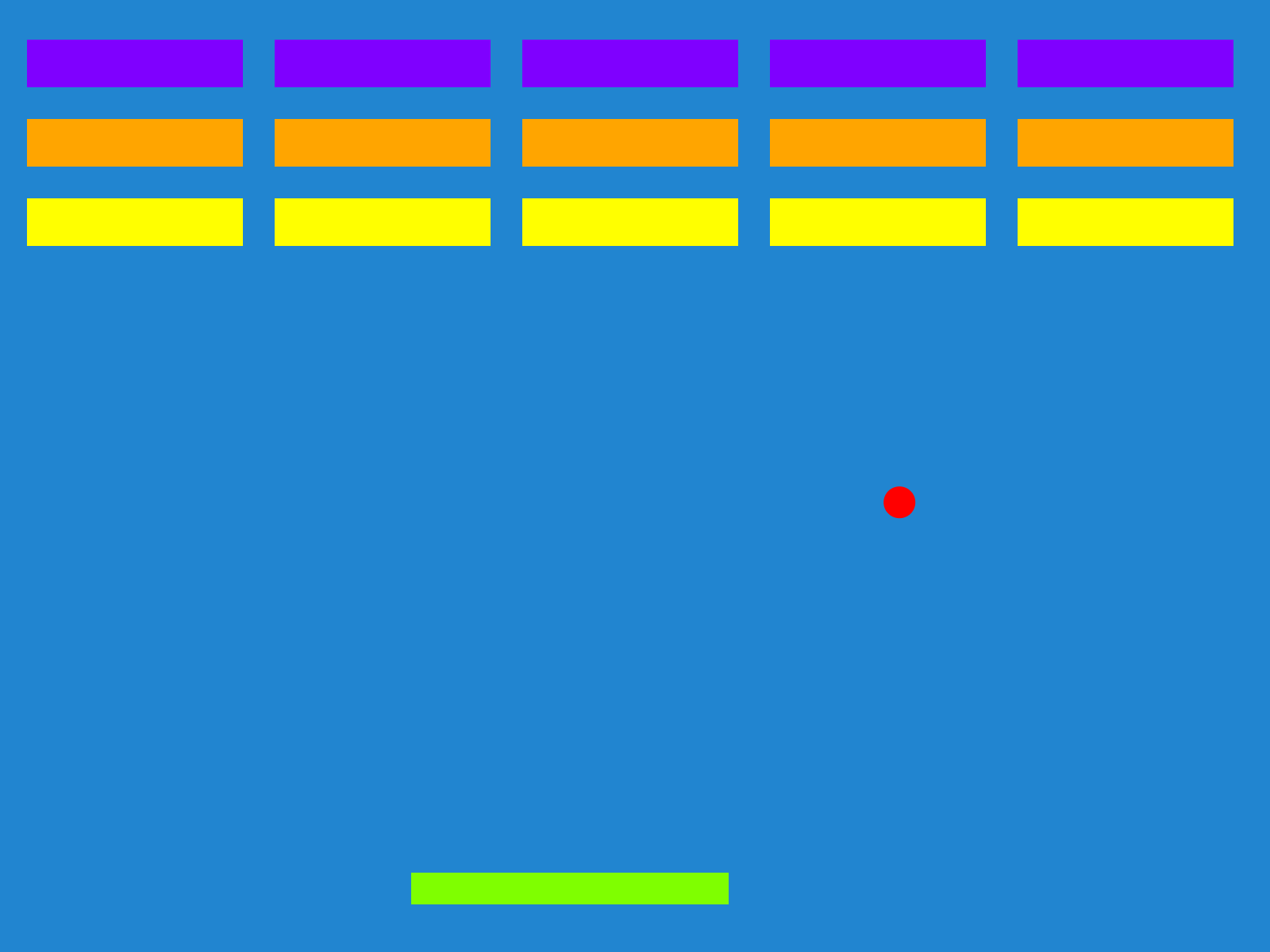
Congratulations! You have just created your first game in Excalibur! You can download this example [here](https://github.com/excaliburjs/sample-breakout).
Some things you could do on your own to take this sample further
* Add [[Sprite|sprite]] [[Graphic|graphics]] to the paddle, ball, and bricks
* Add a fun background instead of the blue
* Interpolate the paddle position between move events for a smoother look
* Make the ball ricochet differently depending where the paddle hits it
It's time to [get introduced](/docs/engine) to the Engine for more examples. Once you're ready, you can browse the [API Reference](/docs).